Media overlays with VideoSync
Firetail allows you to import video and media data for replay in the context of tag sensor and GPS data using the VideoSync module.
Start the module via Data > Sync Video Data.
Video footage (and images) from camera traps or ground truth video can be synchronized with the main timeline to replay and understand location or acceleration data using visual evidence.
This can be a powerful way to annotate sections in the data and to evaluate predicted behavioral annotations.
The module will refer to resources as videos reflecting its main use case, but images and audio will typically work fine as well.
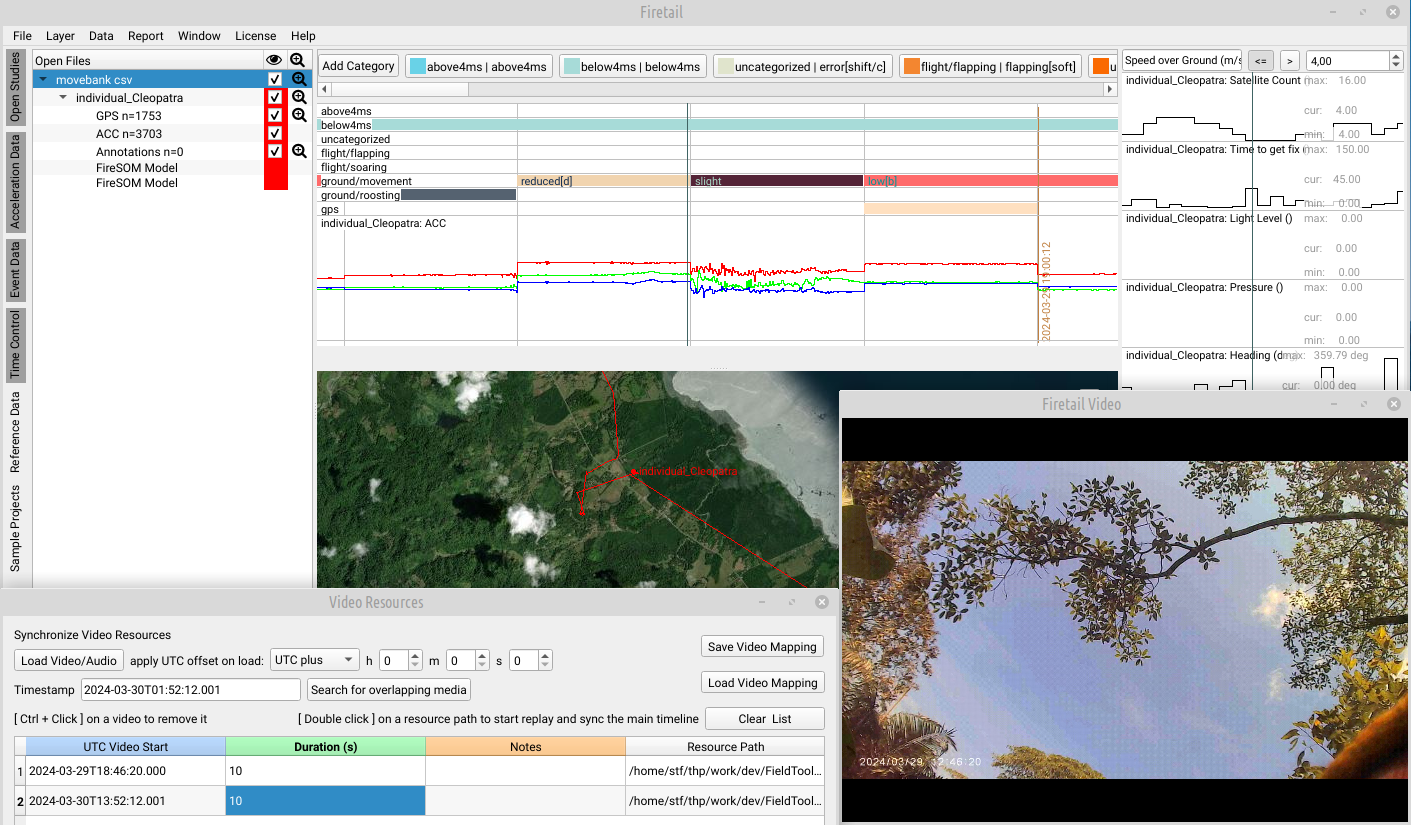
Key Features
With the VideoSync module you can
- add video resources
- apply systematic offsets to UTC to video resources
- synchronize video and data events
- fine-adjust UTC start timestamps
- add notes for a resource
- save/load/combine video mappings
- query timestamps from the main timeline
Prerequisites
Starting from Firetail 14, duplicate resources are allowed, i.e. you can assign the same resource multiple times and apply different offsets.
This can be useful if a single resource contains evidence for multiple animals
Linking mpv player
For video replay and to support a wide range of video codecs, Firetail relies on the freely available MPV player (https://www.mpv.io). Installation and linking the mpv player binary (exe) to the VideoSync module requires a few easy steps (no admin rights required):
- Open “Data > Sync Video Data” from the main menu
- follow the link to the MPV Player (https://www.mpv.io)
- download one of the official builds (e.g. zip files), Nightly builds will work well for Win/Mac (Linux: third-party builds available)
- extract it to any location of your choice
- in the VideoSync module, select the path to the mpv binary
Typical Workflow
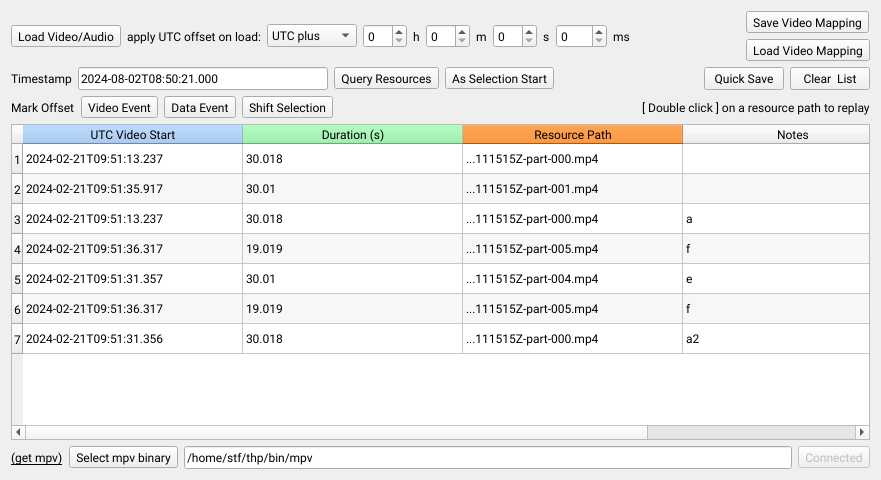
-
Apply a UTC Offset: adjust the offset to UTC for captured resources
- choose if the offset is UTC plus X or UTC minus X
- Pre-select an offset to UTC for the video timestamps (hour/min/second)
- these can be adjusted to the millisecond-level to correct for systematic errors
- 0h 0m 0s indicates your footage is UTC timestamped
-
Load Video/Audio resources
- Add new media files. The selected UTC offset will be applied when loading.
- Note: Firetail attempts to extract recording timestamps and durations from the files. You can always adjust timestamps/durations manually and save your work (Quick Save)
-
Double-clicking the “Resource Path” will start the video and jump to the corresponding position (UTC Video Start) in the main timeline.
- the timeline is intitially paused
- the video will play if the main timeline ‘Play’ is activated
- Note: the video will only be in sync for ‘1 second equals 1 second’
-
Adjust Offsets:
- Fine adjust timestamps by hovering it in the ‘UTC video start’ timestamp, then:
| Shortcut | timestamp shift |
|---|---|
| Shift + Mouse Wheel | +/- 0.2 seconds |
| Control + Mouse Wheel | +/- 1 second |
| Shift + Control + Mouse Wheel | +/- 10 second |
- Quick Save or Save your adjustments (quick save/export/import)
Manual timestamp edit
Double-click on a timestamp to manually set the UTC start. If the timestamp cannot be validated (invalid format or not a valid date), the cell will flash red and reset its value to the previous setting.
Adding notes to a resource
Double-click items in the ‘notes’ column to add a note for a resource. Notes will be saved along with the video mapping. A mapping is automatically saved when the VideoSync window is closed, but may be discarded when the application is closed. Use ‘Quick Save’ or ‘Save Video Mapping’ to make sure crucial changes are kept.
Clear list
Remove all resources.
Save Video Mapping
Save the current list (JSON format).
Load Video Mapping
Load one or more mappings (JSON format). If multiple video mappings are selected they are stacked in the VideoSync list. This allows for a separation of resources by animal or type in individual files.
Search for Overlapping Media
The “Timestamp” field is updated from the main timeline. Using “Search for overlapping media” will search for a resources that overlap the current timestamp. The first match will start playing with an appropriate offset (paused depending on main time control ‘Play’).
Other matches will be highlighted in case of overlapping resources.
Removing/Duplicating resources
Select one or more videos using standard Shift-select or Control-select mouse patterns.
Right-click the selection and choose Duplicate, Remove or Remove all selected.
Remove will remove a single item in the list (with confirmation).
Remove all selected will remove all selected items (with confirmation).
Duplicate will add the current item to the end of the list, e.g. to experiment with other offsets or for other sections of the data.
Event-based resource alignment
Shifting video (audio) data to match simultaneous events in both data and video is a simple, yet powerful concept.
Firetail offers a straightforward workflow to implement this concept. In principle, you select a distinguishable event in the acceleration/sensor data, then locate the same event in your video data. Firetail will compute the offset and align the video start accordingly.
A typical way to achieve this is to seek for matching events in either resource, then shift the video to the correct offset.
A freshly imported resource often starts out with an arbitrary or otherwise unreliable UTC start timestamp, so the video and the data are not yet in the same ballpark. The recommended workflow anchors the video’s timestamp roughly to the data event first, and only then refines it precisely using Video Event/Data Event:
- Import the video (or audio) resource. Its UTC start may be arbitrary at this point - that is expected and fine.
- Navigate to the event of interest in-data, e.g. double-click a distinct GPS/acceleration burst in the burst viewport. This updates the main timeline to that event’s timestamp.
- In the VideoSync window, click
Data Eventto store the main timeline’s current timestamp as the data-side reference. - Select the video resource and click
As Selection Startto set the resource’s UTC start to the current main timeline timestamp. The video start is now equal to the data event, yet the event itself is not yet in-sync.- this is optional if the resource’s UTC start is already reasonably close (e.g. from EXIF/ffmpeg metadata or a prior UTC offset correction) - proceed straight to step 5.
- Double-click the
Resource Pathto load the video - Navigate within the video to the event matching the marked data event, then click
Video Eventto store this as the video-side reference. Shift Selectionwill now show the precise offset that will be applied, e.g.Shift Selection by: ...s.- Click
Shift Selection by: ...to align the video to the data event. Video and data event are now aligned, and navigating the video will move the data/burst view in sync.
                        ====================================
                        Event-based Resource Synchronization
                        ====================================

(1)
Data  -----------------------(event)------------------
                             ^
                             navigate here, hit [Data Event]
(2)
Video  --------(event)------------
               ^
               navigate here, hit [Video Event]
(3)
Offset         [-------------]
               computed offset

(4)
Shift Selection by result:
Video                --------(event)------------
Data  -----------------------(event)------------------
As Selection Start and Video Event/Data Event behave differently: As Selection Start sets a resource’s UTC start absolutely to the current main timeline timestamp, while Shift Selection adds the computed Data Event - Video Event offset to whatever UTC start the resource currently has. This is why As Selection Start is safe to use as a coarse initial step before the precise event-based alignment: the final Shift Selection step corrects for whatever coarse offset remains, regardless of how the resource got there.
Note that for multiple selected resources, the offset will be applied to all items.
Multi-day video may accumulate small deviations and get out of sync.
A possible remedy is to cut videos in manageable chunks (few hours) before importing the data in the VideoSync module.
Forward Synchronization
The workflow is centered around the video resources in the sense that the main timeline will update when an event (seek, start, pause) is triggered from the VideoSync module. Vice versa, a seek event will not trigger an update in the Video viewport.
The reason is that the main timeline control is typically too coarse to find specific sequences within a video snippet.
Note that changing the speed of either data or video replay will lead to an offset.
Keyboard shortcuts in mpv viewport
Another advantage of mpv player is its great set of keyboard shortcuts that can pause, seek or even zoom within the current viewport. Below, we list a subset of shortcuts that work within the mpv viewport and that may come in handy for the work with Firetail.
| Key | Effect |
|---|---|
| Space or right mouse | Pause/Play |
| S | Screenshot |
| F | Fullscreen |
| Shift + T | Toggle Window on top |
| . | next frame |
| , | previous frame |
| shift + arrow left/right | +/- 1 second |
| mouse wheel | +/- 10 seconds |
| arrow up/down | +/- 60 seconds |
| shift + page up/down | +/- 10 minutes (600 seconds) |
| O | Show progress |
| shift + A | cycle aspect ratio |
| 1/2 | decrease/increase contrast |
| 3/4 | decrease/increase brightness |
| 5/6 | decrease/increase gamma |
| 7/8 | decrease/increase saturation |
| 9/0 | decrease/increase volume |
| W/E | zoom in/out |
| Alt + arrows | move view when zoomed in |